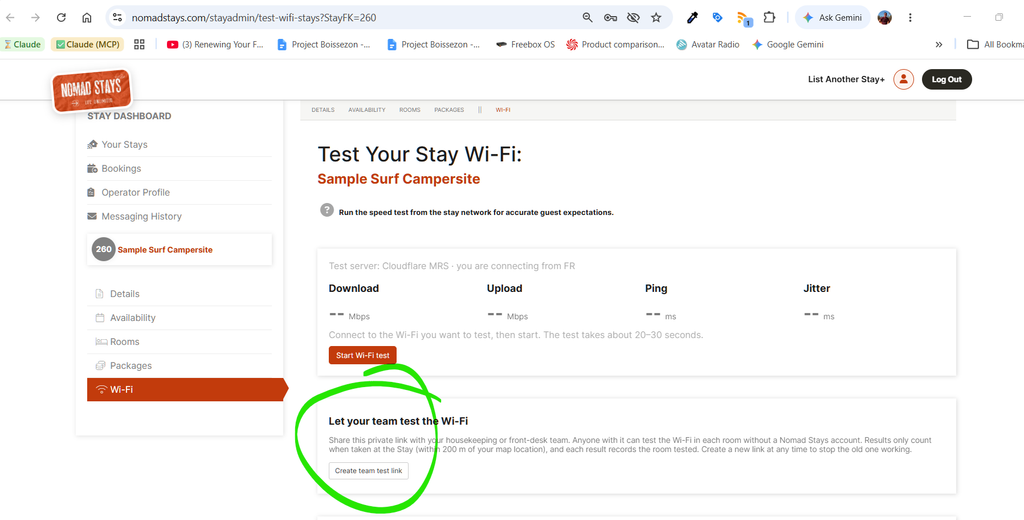
You can let your housekeeping, front-desk or maintenance team test the Wi-Fi in every room of your Stay, without them needing a Nomad Stays account. You create a private link, share it with your team, and they run the test on their phone or laptop while standing in each room. Every result is saved to your Stay, together with the room it was taken in.
Accurate, room-by-room results help digital nomads choose your Stay with confidence, and they show you which rooms have weak spots.
Create your team test link
- Log in to your Stay Dashboard at www.nomadstays.com and open your Stay.
- Click Wi-Fi in the menu on the left.
- Find the box Let your team test the Wi-Fi and click Create team test link.
- Click Copy and send the link to your team by WhatsApp, email or message. Your Stay needs its address set on the map and its rooms added first, otherwise the test page can’t save results.
The link ends in a 10-character team code. If someone needs to type it in, the code is shown under the link. It is not case-sensitive and never uses the letters O, I, L or the numbers 0 and 1, so it is easy to read out.
What your team does
- Stand in the room and connect to the guest Wi-Fi that guests use in that room. Please don’t use mobile data, and turn off any VPN.
- Open the link, choose the room you are in, and optionally type your name.
- Tap Start Wi-Fi test and allow location access when the browser asks. Keep the page open for the 20–30 seconds the test takes.
- When you see Result saved, tap Test another room and repeat in the next room.
Why the test asks for location
Because there is no login, the link is the only key. To make sure results are real, the test only counts when the phone or laptop is within 200 metres of your Stay’s pin on the map. If someone tries from further away, the page tells them how far away they appear to be and nothing is saved. Your team’s location is used only for this check and is not shown on your Stay page.
Where to see the results
Open Wi-Fi in your Stay Dashboard and scroll to Recent WiFi Test Results. Team results show the room, the speeds, and are labelled Stay team, with the tester’s name if they entered one.
Team tests count towards the Wi-Fi speed shown on your Stay page, in the same way as tests you run yourself. See When is my Wi-Fi speed updated for how the average works. Tests run by guests during their stay appear in your history but don’t count towards that average.
Keeping the link private
- Anyone who has the link can run and save tests for your Stay, so share it only with people who work there.
- If the link is shared too widely, or a team member leaves, click Create a new link in the same box. The old link stops working immediately, so send the new one to your team.
- For fairness and protection, up to 30 team tests per hour can be saved for each Stay.
Troubleshooting
- “Location access is needed”: the browser blocked location. Allow it for nomadstays.com and try again. If the link was opened inside a chat app, open it in Safari or Chrome instead.
- “You appear to be … m from the Stay”: the person may not be on site, or the pin on your Stay’s map may be in the wrong place. If your team is definitely on site, check the address on the map in your Stay details.
- “Wi-Fi test link not recognised”: a new link has been created since this one was shared. Send your team the current link.
- The test can’t reach the server: the Wi-Fi has no working internet connection. Check your router.
- Unusual results: ask your team to repeat the test with other devices disconnected and nothing else downloading.
NB: The team link is available for Stays. For how we measure speed and how often it is updated, see How is your Wi-Fi speed determined?